This article provides troubleshooting information for USB-C connection issues.
Not all USB-C ports or USB-C cables support video output or power delivery. Both the source device port and the USB-C cable must support video and power for the monitor to function correctly.
If the source device is a tablet or mobile device, it must be connected to an external power source. Many tablets and mobile devices cannot output sufficient video or power over USB-C when running on battery alone.
Troubleshooting USB-C Issues
Monitor Not Receiving Video or Power
When a monitor connected via USB-C does not display video or receive power, follow the steps below to isolate the cause.
1. Verify the USB-C Port Supports Video Output
Not all USB-C ports support video.
The source device must support DisplayPort Alt Mode
Some USB-C ports are data-only
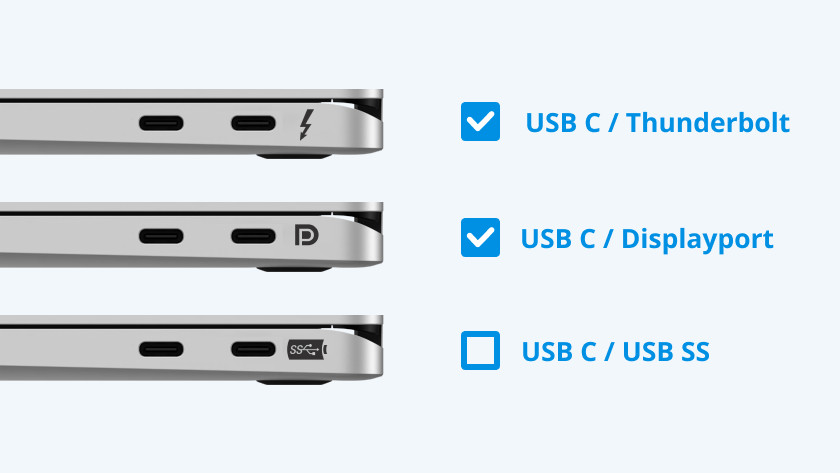
Check:
Device technical specifications
Port markings (DisplayPort or monitor icon)
Manufacturer documentation
If video output is not supported, the monitor will not display an image.
2. Confirm the USB-C Cable Supports Video and Power
USB-C cables vary widely in capability.
Some cables support data only
Some support video but limited power
Cable quality and length affect reliability
Best practice:
Use a short, high-quality USB-C cable explicitly rated for video and power delivery.
3. Remove Adapters, Hubs, and Docks
Adapters and docking stations are frequent failure points.
Disconnect all hubs, dongles, and docks
Connect the source directly to the monitor using a single USB-C cable
If the direct connection works, the adapter or dock is the issue.
4. Manually Select USB-C as the Monitor Input
Some monitors do not auto-detect USB-C.
Open the monitor’s on-screen display (OSD)
Manually select USB-C as the input source
Refer to the monitor's User's Manual for steps
5. Verify Power Availability
USB-C power is negotiated between devices.
Some sources cannot provide enough power to drive the monitor
Some monitors require their own external power supply
Try the following:
Connect the monitor’s external power adapter if supported
Ensure tablets or mobile devices are plugged into power
Test with a laptop or PC known to support USB-C video and power
6. Power Cycle to Reset USB-C Negotiation
USB-C relies on signal and power negotiation.
Power off the monitor
Power off the source device
Disconnect the USB-C cable
Reconnect the cable
Power on the monitor first, then the source device
7. Test With Alternate Equipment
Swap components to isolate the failure.
Try a different USB-C cable
Try a different source device
Try a different monitor
This determines whether the issue is with the source, cable, or monitor.
Quick Isolation Checklist
Confirm the USB-C port supports video output
Use a known-good USB-C cable rated for video and power
Remove all adapters and docks
Manually select USB-C input on the monitor
Ensure tablets or mobile devices are connected to power
Power cycle both devices
Test with alternate hardware
Please report any broken links by emailing elo.support@zebra.com and include a link to the knowledge article